LinkedIn messages are useful for networking, follow-ups, and professional outreach, but many people still have questions about read receipts, privacy, screenshots, group messaging, deleting messages, and whether you can unsend a message. This guide answers the most common LinkedIn messaging questions in a simple, practical way.
LinkedIn messaging is an important part of networking, job search communication, recruiting, client conversations, and relationship building. The basics are simple, but the details can get confusing. People often ask what a check mark means, whether screenshots are allowed, whether read receipts can be turned off, how many people can be added to a message, and what happens when a message is deleted.
This updated guide covers the 10 most asked questions about LinkedIn messages with clear answers, practical context, and 2026-friendly guidance.
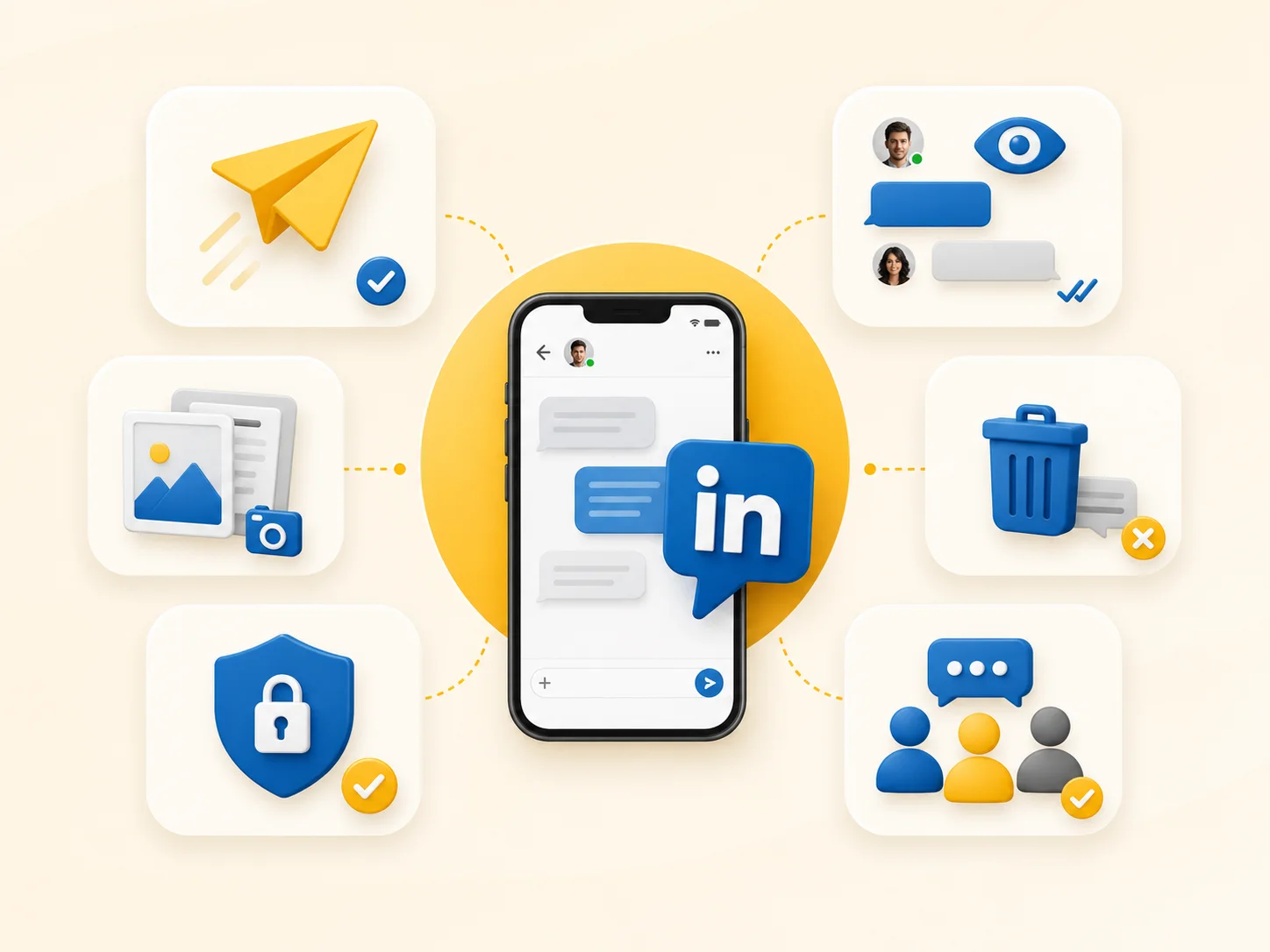
Overview visual: common LinkedIn messaging topics such as sending, privacy, group conversations, attachments, and deletion.
1. What Is the Meaning of the Check Mark in LinkedIn Messages?
A check mark generally shows that your message has been sent successfully. In LinkedIn messaging, different indicators may be used to show stages such as sent, delivered, or read, depending on the device, interface, and whether read receipts are enabled.
The most useful practical rule is this: a sent or delivered indicator does not necessarily mean the other person has read the message. If the recipient has read receipts enabled and opens the message, LinkedIn may show a read indicator, often using a small profile photo or another visual confirmation in the chat interface.
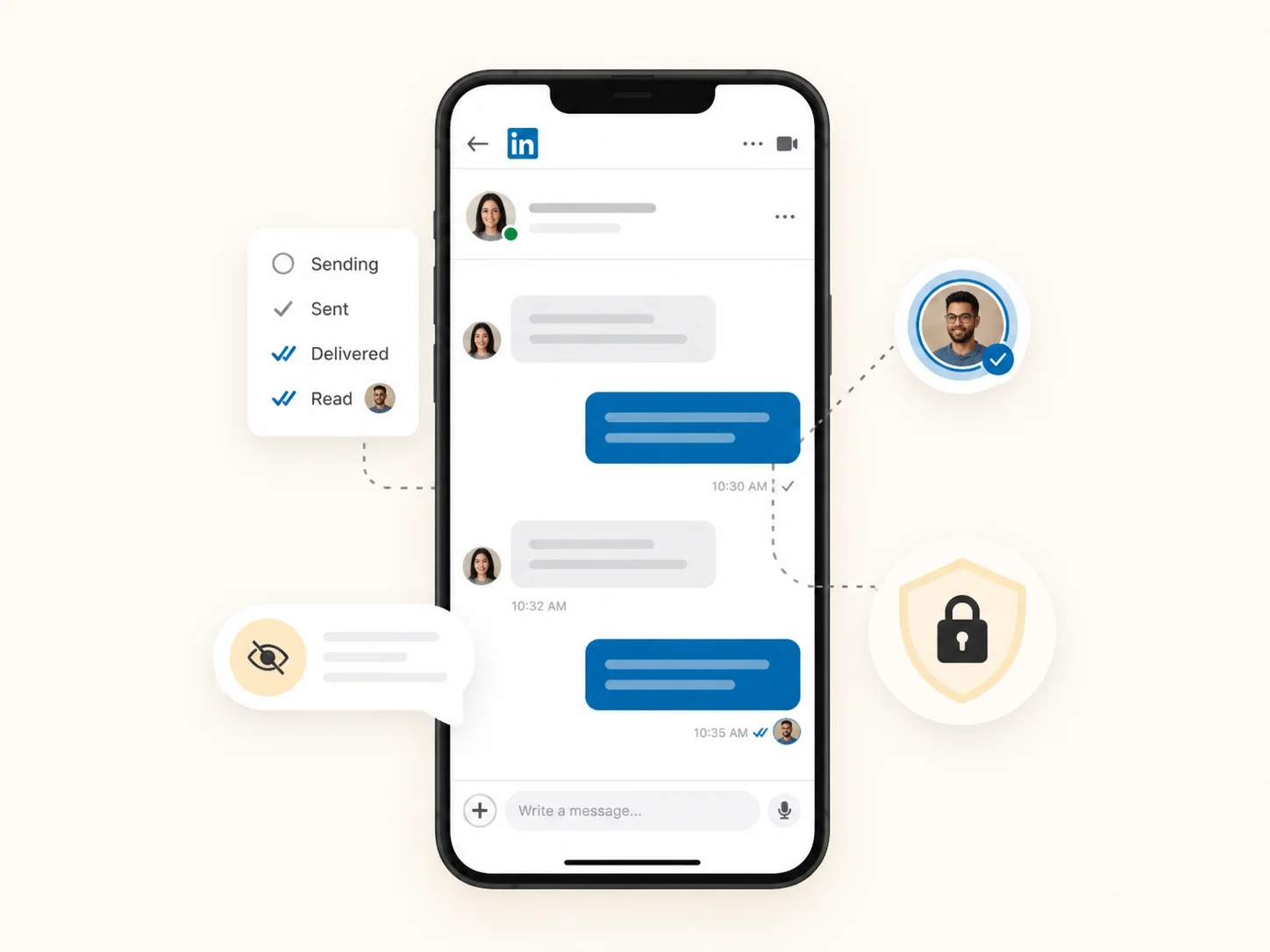
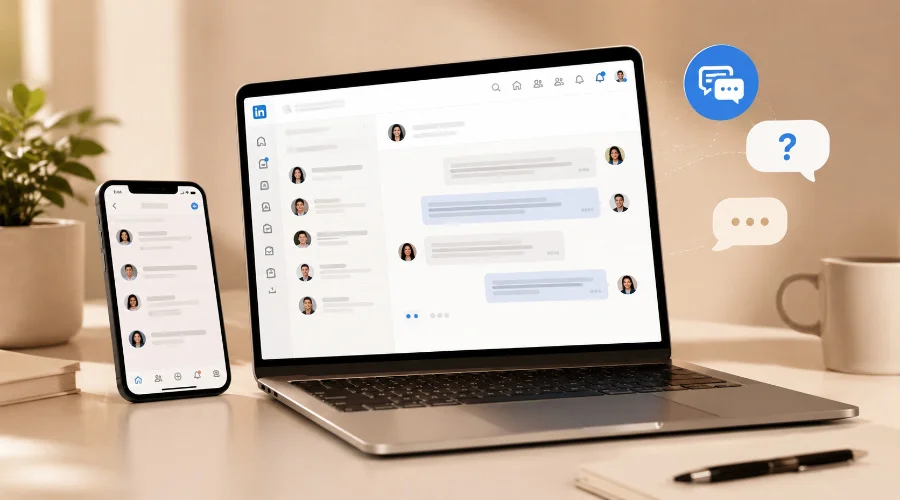
Message status visual: sent, delivered, and read behavior in a LinkedIn-style chat interface.
2. Can you screenshot LinkedIn messages?
Yes, technically you can take a screenshot of LinkedIn messages on your device. However, whether you should do it is a separate question. Screenshots can expose private conversations, personal details, or business-sensitive information.
If you plan to share a screenshot publicly or even privately with a wider group, remove names and identifying details unless you have permission. Good judgment matters more than the screenshot itself. Treat LinkedIn messages like any other professional communication and respect confidentiality.
3. Can You Send Bulk Messages on LinkedIn? ?
LinkedIn is not designed as a bulk messaging platform in the same way email marketing tools are. You can create a group message or add multiple recipients in certain situations, but that is not the same as large-scale promotional bulk messaging.
If your goal is outreach, personalized connection requests, relevant one-to-one messages, or proper InMail usually work better than copying the same message to a large group. High-volume, repetitive messaging can lead to poor results and may trigger platform restrictions.
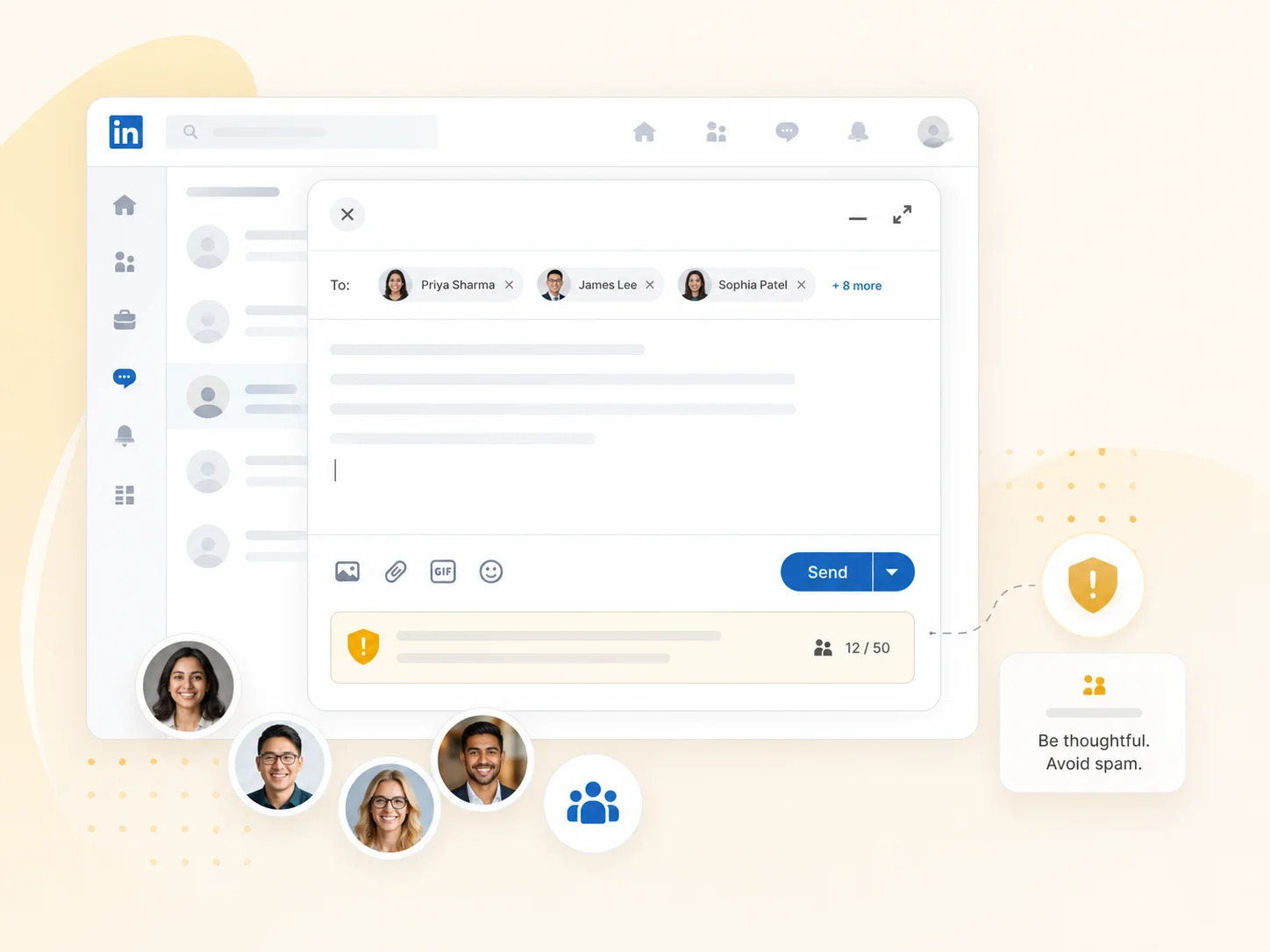
Group messaging visual: composing a message with multiple recipients while staying thoughtful and avoiding spam.
4. Are LinkedIn messages private?
LinkedIn messages are generally private between the participants in the conversation. However, like most platforms, LinkedIn may process or access data as part of service operation, abuse prevention, legal compliance, or when content is reported.
That means you should treat messages as private professional communication, but not assume they are beyond all review under every circumstance. Do not share sensitive personal, legal, or confidential business information casually.
5. How do you send bulk or group messages on LinkedIn?
If you want to message more than one person in the same conversation, open LinkedIn messaging, start a new message, and add the recipients you want to include. On supported interfaces, LinkedIn will show the participant list as you add people.
Use this feature carefully. Group messaging works best for legitimate introductions, event coordination, project discussions, or networking conversations where the participants clearly belong in the same thread. It should not be used as a substitute for spammy mass outreach.
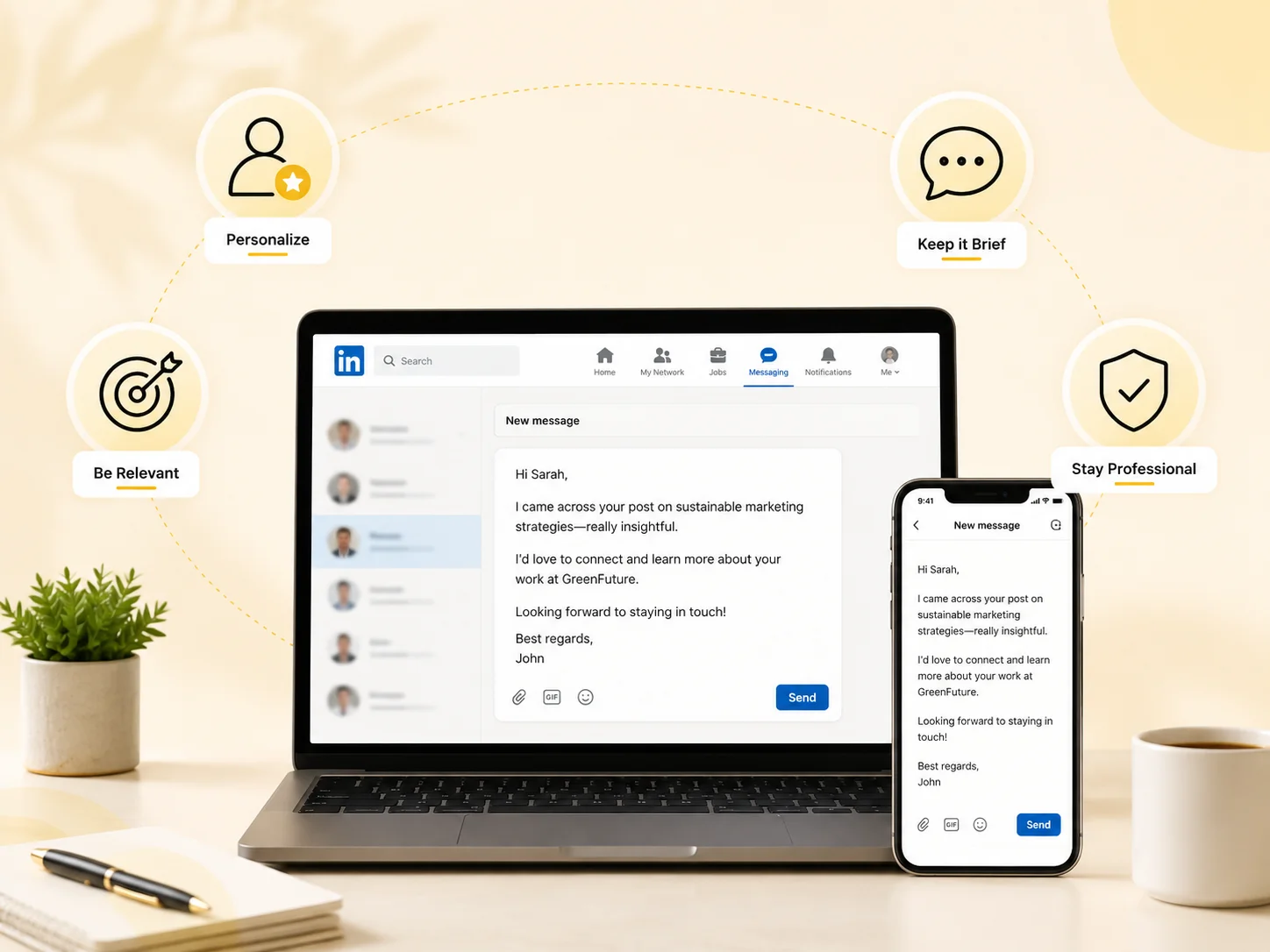
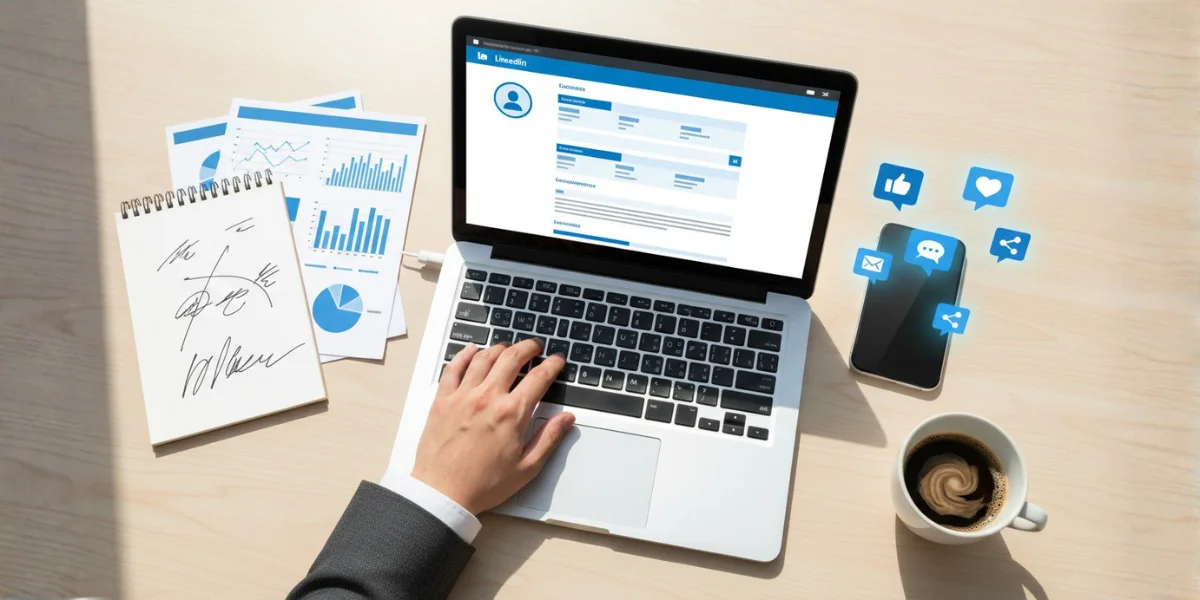
Practical outreach visual: a concise, personalized professional message that fits LinkedIn etiquette.
6. Does LinkedIn messaging have read receipts?
Yes, LinkedIn messaging supports read receipts. If you and the other person have read receipts enabled, the interface may show when a message has been read.
Keep in mind that read receipts are a setting, not a guarantee. If the recipient has turned off read receipts, you won't see a read confirmation even if they've opened your message. The same applies to typing indicators.
7. How many messages can you send on LinkedIn?
LinkedIn does not publish one simple universal number that applies equally to every user, every account type, and every messaging feature. The effective limits can vary based on factors such as your account standing, network, plan type, and the kind of message you are sending.
A safer best practice is to focus on quality over quantity. If you send a small number of relevant, personalized messages, you are more likely to get replies and less likely to run into restrictions. Very high-volume messaging is not a strong long-term strategy on LinkedIn.
8. Can you delete messages on LinkedIn?
Yes, you can remove messages or entire conversations from your side of LinkedIn messaging. LinkedIn also allows message editing within a limited time window after sending in supported cases.
The important distinction is that deleting a message from your own view is not the same as having a full unsend feature that guarantees the message disappears for everyone. Once a message has been sent and seen by the recipient, you should assume it may already have been read.
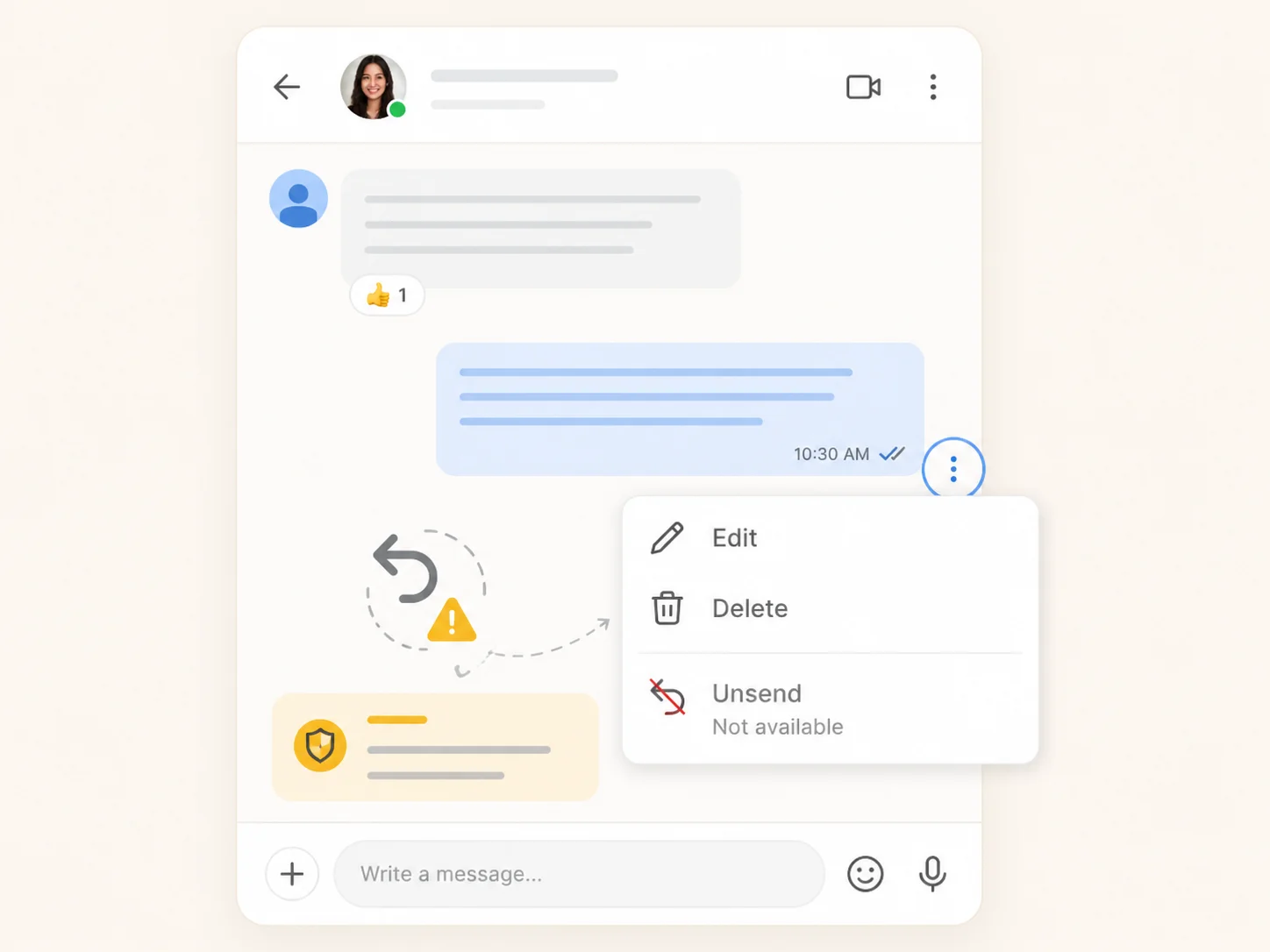
Edit and delete visual: message actions, a limited edit window, and the lack of a true unsend feature.
9. How do you delete messages on LinkedIn?
Open the conversation you want to manage, then use the more options menu, usually shown as three dots or an overflow menu, to view actions such as edit or delete. The exact placement can vary slightly between desktop and mobile.
If you want to remove a full conversation from your inbox, you can usually do that from the conversation options as well. Always double-check before confirming, especially if you are editing or removing an important thread.
10. Can you unsend messages on LinkedIn?
LinkedIn is not known for a broad, reliable unsend feature in the way some consumer messaging apps use the term. In practical terms, once a message is sent, you should assume it cannot be fully taken back from the recipient’s experience.
That is why reviewing the message before sending matters. Check the tone, spelling, names, links, and context before you click send. Prevention is far better than trying to reverse a message later.
Best Practices for LinkedIn Messaging
• Keep messages short and relevant.
• Personalize your opening whenever possible.
• Avoid sending the same pitch to large numbers of people.
• Use read receipts and privacy settings intentionally.
• Be cautious with screenshots and confidential information.
• Review your message before sending, especially when outreach matters.
Conclusion
Most LinkedIn messaging questions come down to a few key themes: status indicators, privacy, message limits, group conversations, and deletion behavior. Once you understand those basics, LinkedIn messaging becomes much easier to use confidently.
The best approach is simple. Write clearly, keep messages relevant, avoid spammy behavior, and review before sending. That will help you use LinkedIn messages more effectively whether you are networking, hiring, job searching, or building professional relationships.